Introduction to BlocksPay Wallet
BlocksPay Wallet is a secure and user-friendly crypto wallet browser extension that allows you to store, send, and receive cryptocurrencies while interacting seamlessly with decentralized applications (dApps). With built-in private key management and encryption, you retain complete control over your digital assets. Supporting multiple blockchain networks, BlocksPay makes it easier to explore DeFi, trade tokens, and access the Web3 ecosystem directly from your browser. The latest update introduces a modern, intuitive interface designed for improved accessibility, smoother navigation, and a better overall user experience. If you already have BlocksPay installed, simply click on the “Enable Now” button in the Chrome Web Store to upgrade to the newest version.
In this walkthrough, we’ll guide you through the essentials of the updated BlocksPay Wallet extension.
Getting Started with BlocksPay Extension
Step 1: Install the Wallet
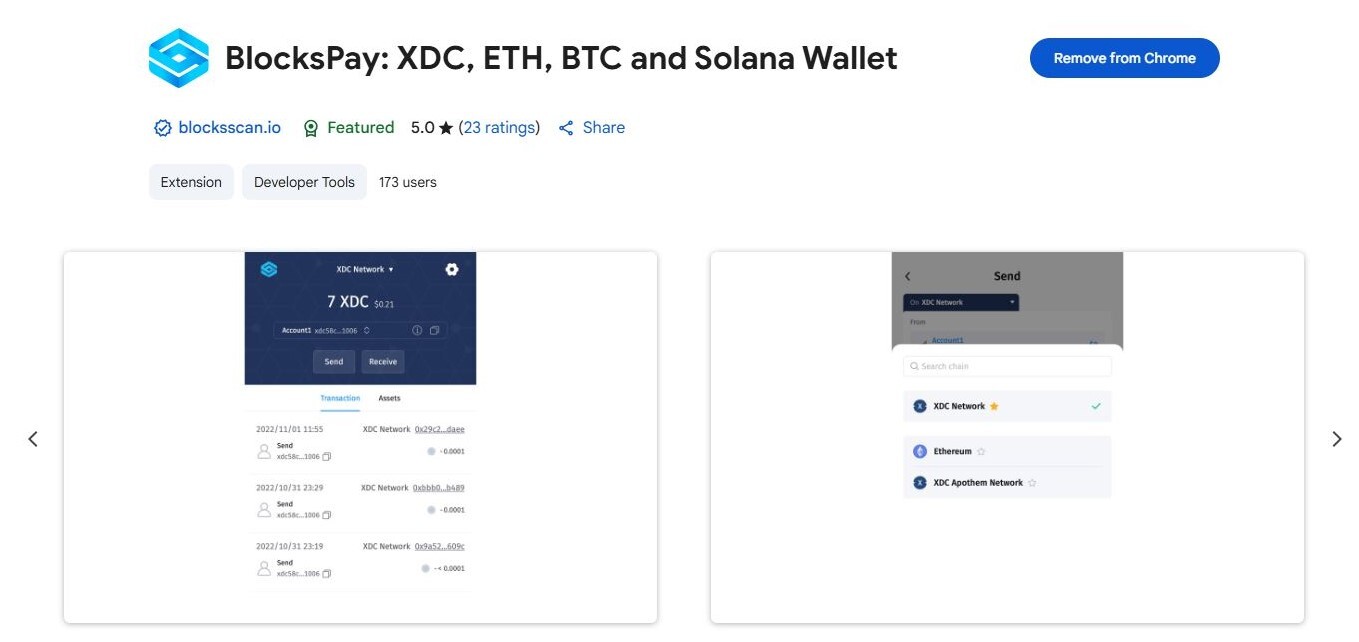
Download BlocksPay Wallet from the Chrome Web Store.
⚠️ If you already have an older version installed and it shows as Inactive, click on “Enable Now” to upgrade instantly.
Step 2: Set Up a Secure Password
Create a strong password to protect your wallet. This password will be required each time you log in to the extension.
Step 3: Choose an Option
- Create a new account: Generate a fresh crypto wallet.
- Import existing account: Use your Seed Phrase to import your wallet.
4. Secure Your Seed Phrase
Write down and store your seed phrase in a safe offline location.
- Never share your seed phrase with anyone.
- When prompted, confirm it by re-entering in the extension.
That’s it! Your BlocksPay Wallet account is successfully created.
Exploring the New Interface
The updated UI is designed for simplicity and control.
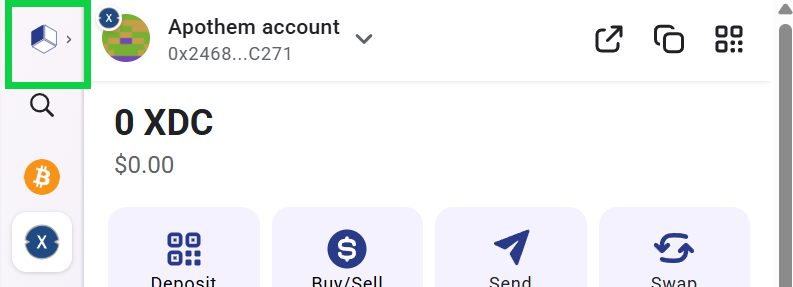
Sidebar Navigation The left sidebar shows various network icons.
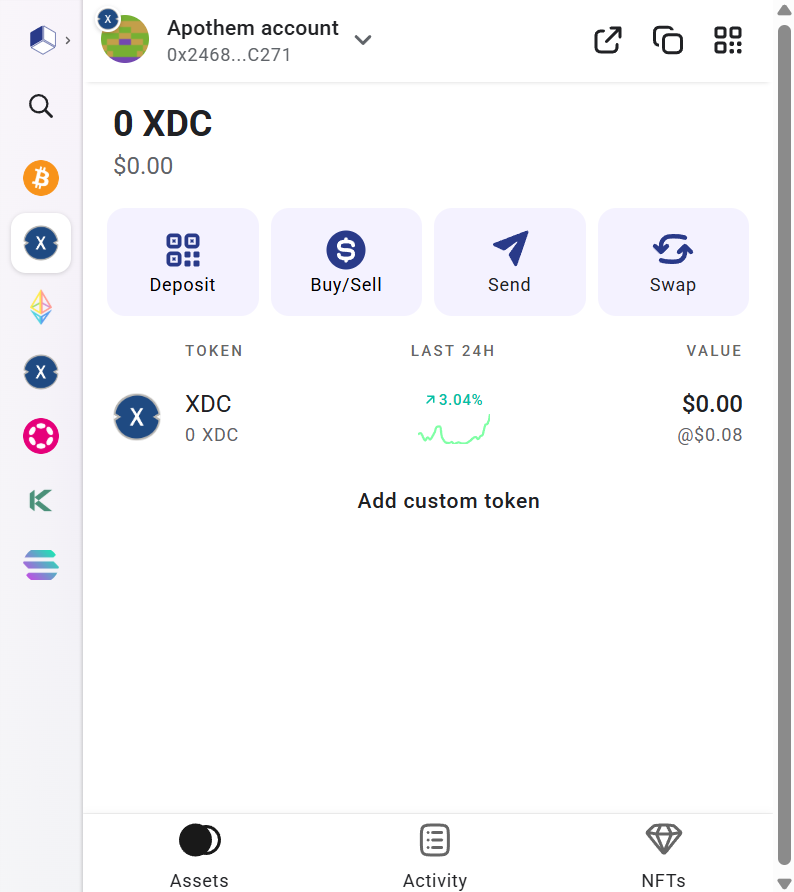
- Clicking Expand opens a new window where you can add or switch networks.
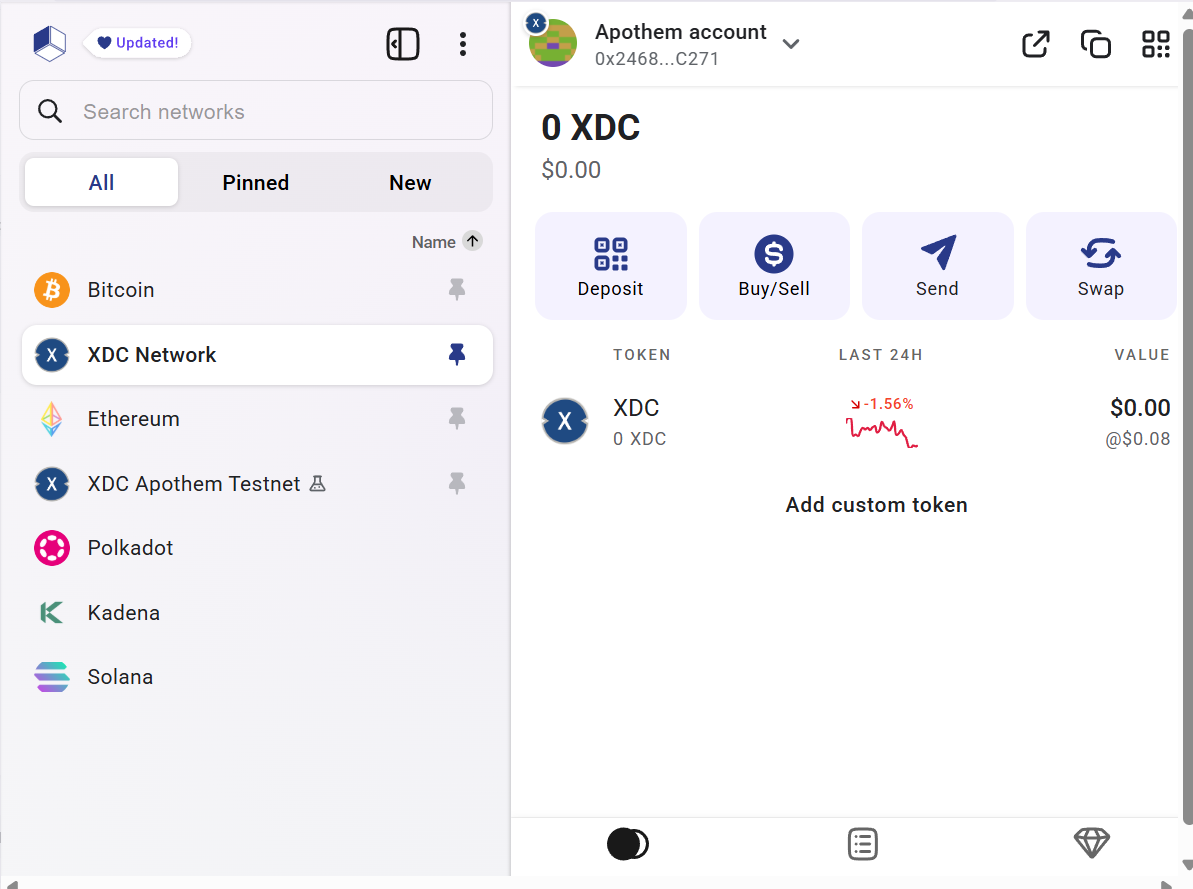
Network Management:
- All – Displays every supported network in BlocksPay.
- Pinned – Shows networks you’ve pinned for quick access.
- New – Highlights the latest networks added.
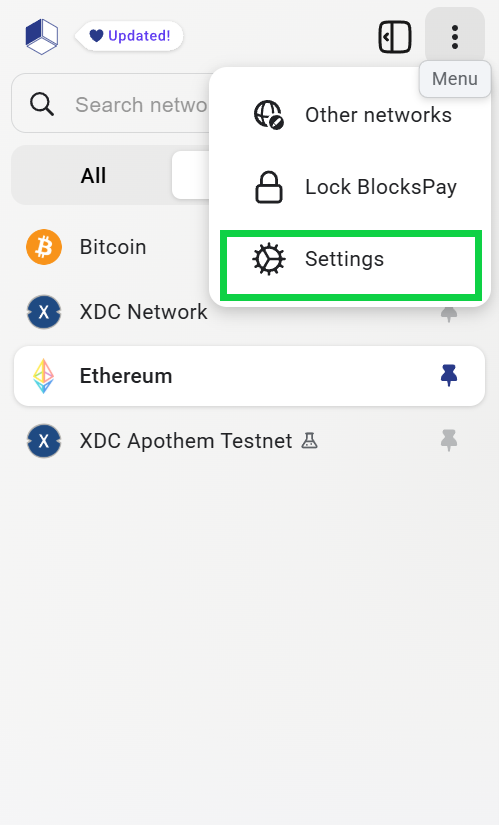
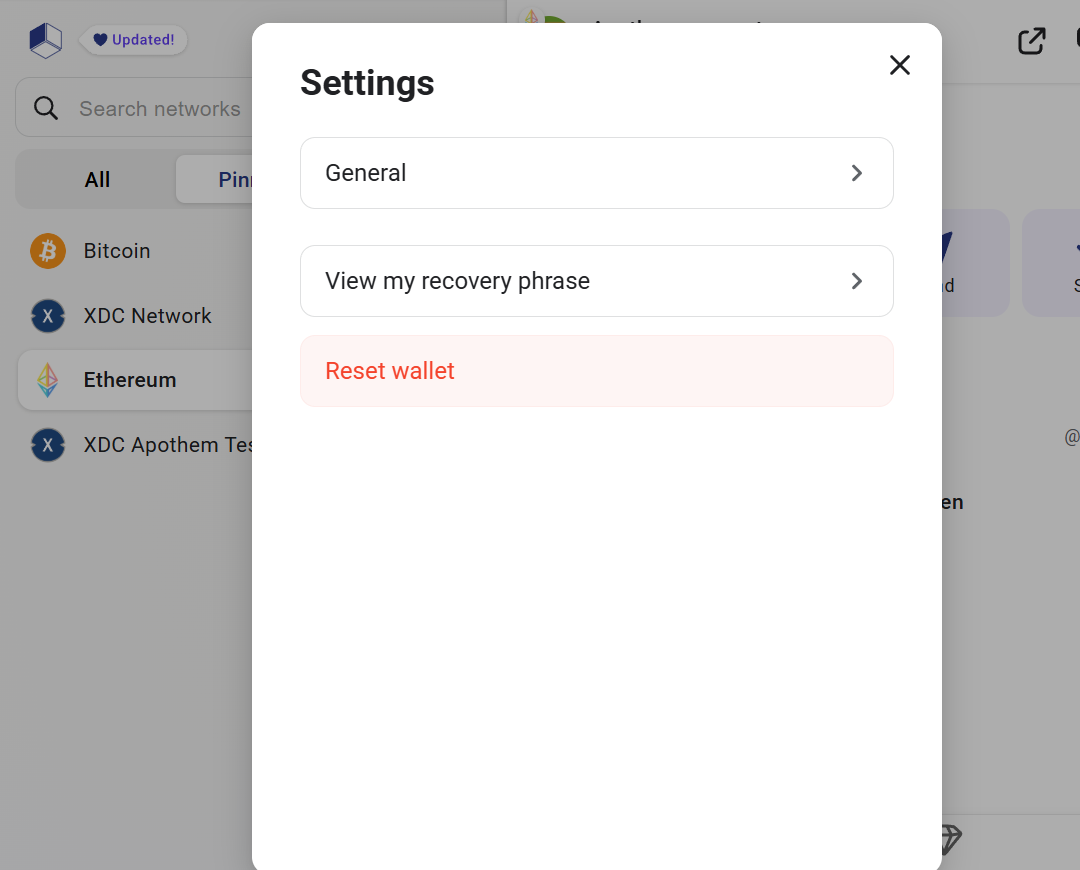
Settings Menu Access the three-dot menu → Settings to:
- Adjust general settings
- Review your seed phrase
- Reset your wallet if needed
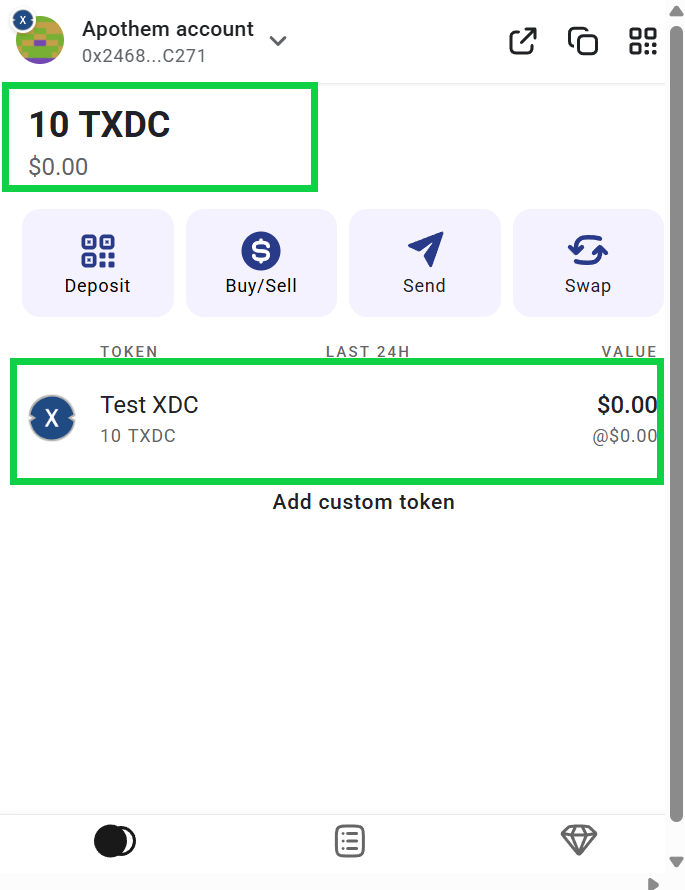
Dashboard Overview The Dashboard has been enhanced for clarity and accessibility. Here’s what you’ll find:
- Balance Overview – View your wallet’s balance across different networks.
- USD Valuation – Instantly check the fiat value of your assets.
- Token Management – Add new tokens, view details, and track performance.
- Network-Specific Balances – Easily switch between networks to monitor funds.
Final Thoughts The enhanced BlocksPay extension makes it even easier to manage digital assets, explore networks, and interact with dApps—all while ensuring your security. With its redesigned UI and improved accessibility, this update empowers users to take full advantage of Web3 directly from their browser. Update your BlocksPay Wallet today via the Chrome Web Store and start exploring the new features.
Please Follow👇